> For the complete documentation index, see [llms.txt](https://doc.nextbot.ru/llms.txt). Markdown versions of documentation pages are available by appending `.md` to page URLs; this page is available as [Markdown](https://doc.nextbot.ru/functional/integrations/telegram/podklyuchenie/gruppa.md).
# Группа
Подключение ИИ-агента к чат-боту для работы в группе
**Группа** — тип подключения, при котором ИИ-агент может принимать и отвечать на сообщения в группах, а также отправлять в них отчёты. Подключение немного отличается от стандартного, однако весь основной функционал сохраняется: агент может работать **как в группах, так и в личных сообщениях**.
## Подключения чат бота к группе вручную:
1. Перейдите по [ссылке](https://telegram.me/BotFather) и вставьте команду /newbot. Eсли у вас уже есть бот вставьте команду `/mybots` выберите нужного бота и следуйте пункту 3.
2. Задайте имя боту
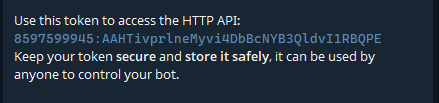
3. Скопируйте HTTP API ключ
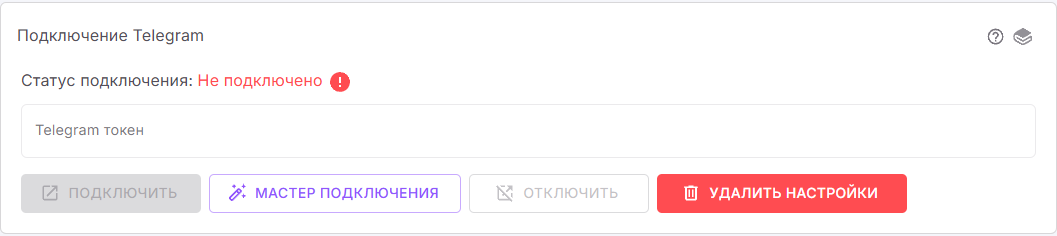
4. Вставьте ключ в поле на странице интеграции
5. Нажмите на кнопку подключить
6. Перейдите по [ссылке](https://t.me/BotFather) к BotFather.
7. Введите команду `/mybots`, чтобы открыть список ботов.
8. Выберите нужного бота.
9. Отключите режим приватности:\
1\. Нажмите **«Bot Settings»**\
2\. Выберите **«Group Privacy»**\
3\. Нажмите **«Turn off»**
#### Добавление бота в группу
1. Откройте нужную вам группу
2. Зайдите в настройки группы
3. Нажмите на кнопку добавить пользователя\

4. В поиске введите имя вашего бота и нажмите на кнопку добавить
{% hint style="info" %}
Если Telegram преобразовал группу в супергруппу, у чата меняется идентификатор. Из-за этого старая привязка будет нарушена. В таком случае заново добавьте бота в группу. Подробнее: [Ошибки Telegram](/questions-answers/errors-description/channels/telegram.md).
{% endhint %}
#### Также вы можете подключить интеграцию при помощи [Мастера подключений](/functional/integrations/telegram/instrukciya-dlya-podklyucheniya-telegram-cherez-master-podklyuchenii.md)
---
# Agent Instructions
This documentation is published with GitBook. GitBook is the documentation platform designed so that both humans and AI agents can read, navigate, and reason over technical content effectively. Learn more at gitbook.com.
## Querying This Documentation
If you need additional information that is not directly available in this page, you can query the documentation by asking a question.
Perform an HTTP GET request on the following URL with the `ask` and `goal` query parameters:
```
GET https://doc.nextbot.ru/functional/integrations/telegram/podklyuchenie/gruppa.md?ask=&goal=
```
`ask` is the immediate question: it should be specific, self-contained, and written in natural language.
`goal` is what the user is ultimately trying to achieve, the reason they need the answer. Sharing it helps GitBook give you a better, more relevant answer. A goal is most helpful when it describes the outcome the user wants rather than restating the question. For example, with `ask=how do I create an API token`, a goal like `automate deployments from our CI pipeline` lets GitBook tailor the answer to that use case.
The response will contain a direct answer to the question and relevant excerpts and sources from the documentation.
Use this mechanism when the answer is not explicitly present in the current page, you need clarification or additional context, or you want to retrieve related documentation sections.